Documentation /Bookings
The customer panel
The My bookings page normally asks for a booking code and the email it was made with, then shows that one booking. That is right for a guest: a code alone would let anybody who guessed one read a stranger's booking.
For a customer who is signed in, it is a nuisance. The customer panel turns the same page into their own account: every booking they have made, upcoming and past, with nothing to type.
The customer panel is in the Pro and Elite plans. It uses the page you set as My bookings page under Settings → General settings → Public pages: see The pages your site needs.
What the customer sees
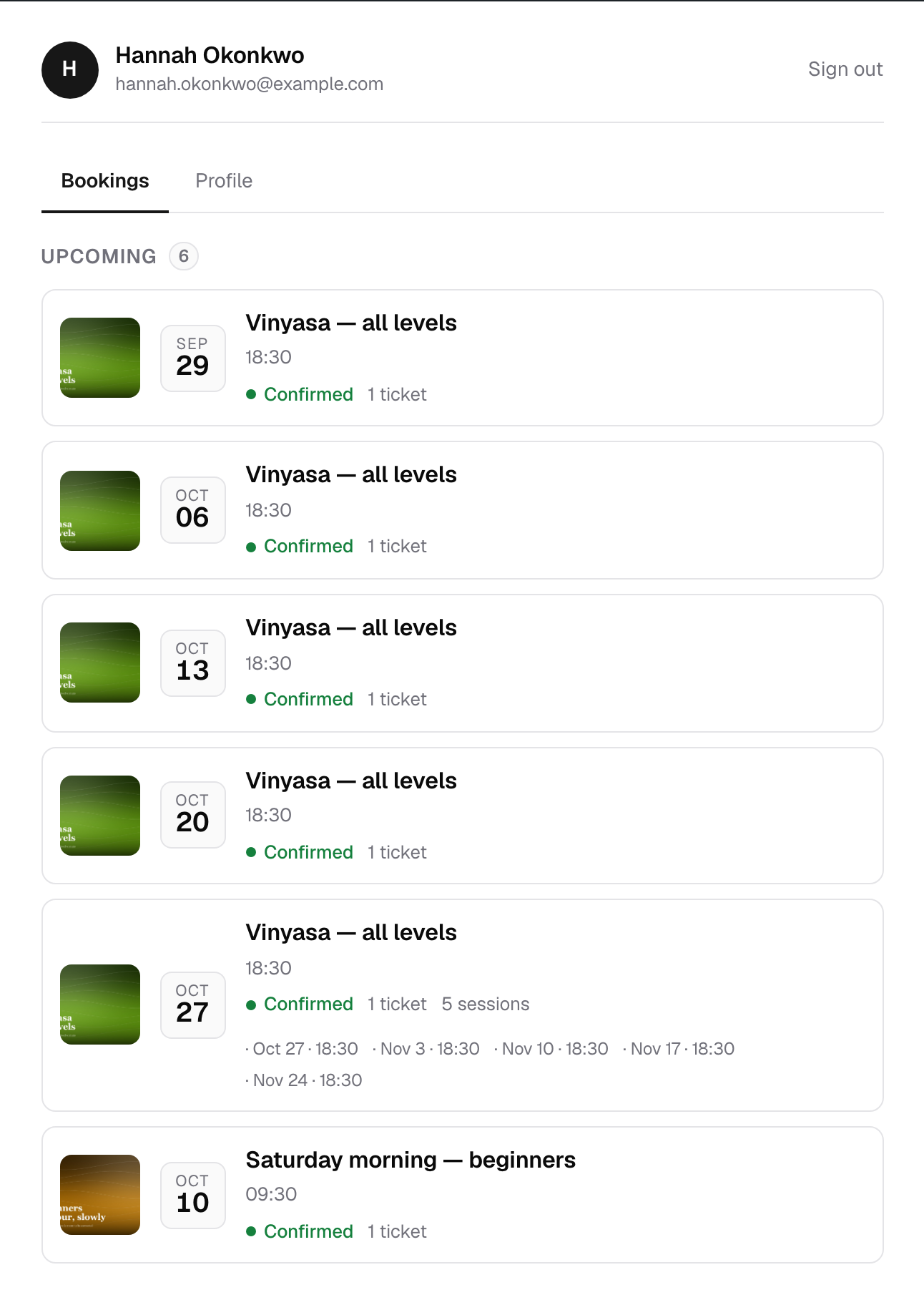
A signed-in customer who opens My bookings gets two tabs and a Sign out button.
Bookings : Their bookings as cards, Upcoming first and Past after, never mixed. Each card says the event, the date, how many tickets and the status, such as Confirmed or Payment due. A course shows how many sessions it has and lists them, with a tick on the ones they have already attended. Clicking a card opens the booking: the tickets with their codes, the answers they gave and, on plans with invoices, the invoice.
Profile : Their first name, last name and phone, which they can correct themselves. The email is what they sign in with, so it cannot be changed here. They can also change their password.
Somebody who is not signed in still gets the code and email lookup, so nothing changes for guests.
Giving customers an account
A customer needs a WordPress account to sign in. There are two ways to give them one.
For everybody : Settings → General settings → Customer panel, switch on Give every customer a WordPress account. An account is made the first time a customer is added, by a booking or by hand from the admin.
For one customer : On the Customers screen, the row menu offers Give a sign-in account. Leave Send them their password ticked to send it now, or untick it to tidy up an old record quietly. Remove sign-in account takes it away again. The WordPress user itself is left alone, since it may own other things on the site.
If the email already belongs to a WordPress account, the customer is linked to it instead of getting a second one, and keeps the password they have. An address that belongs to an administrator or a member of staff is never linked to a customer.
Sending the password
The password is generated and shown nowhere, not even to you. The only moment it can be sent is when the account is made, so add a workflow on the trigger A customer gets a sign-in account before you switch accounts on:
Hi {customer_first_name},

You can now see all your bookings in one place.
Sign in at {customer_panel_url}
Username: {customer_account_username}
Password: {customer_account_password}
Without it, accounts are made but nobody can sign in. An existing account that is only linked sends nothing, because telling somebody their "new" password for an account they have had for years looks like phishing.
After signing in, customers are taken straight to My bookings, not to the WordPress profile screen.
Which bookings are listed
The bookings of the customer record the account belongs to, and nothing found by email address alone. An email address proves nothing about who is signed in, and somebody else may have registered with it since. If a customer finds a booking missing, look for a second customer record with their address on the Customers screen.