Documentation /Workflow
What workflows are
A workflow is one sentence: when this happens, do this. A booking is made, so send a confirmation. An event starts tomorrow, so remind everybody coming. Somebody is checked in, so tell the bar.
Workflow in the menu, in two tabs: Workflows and Queue.
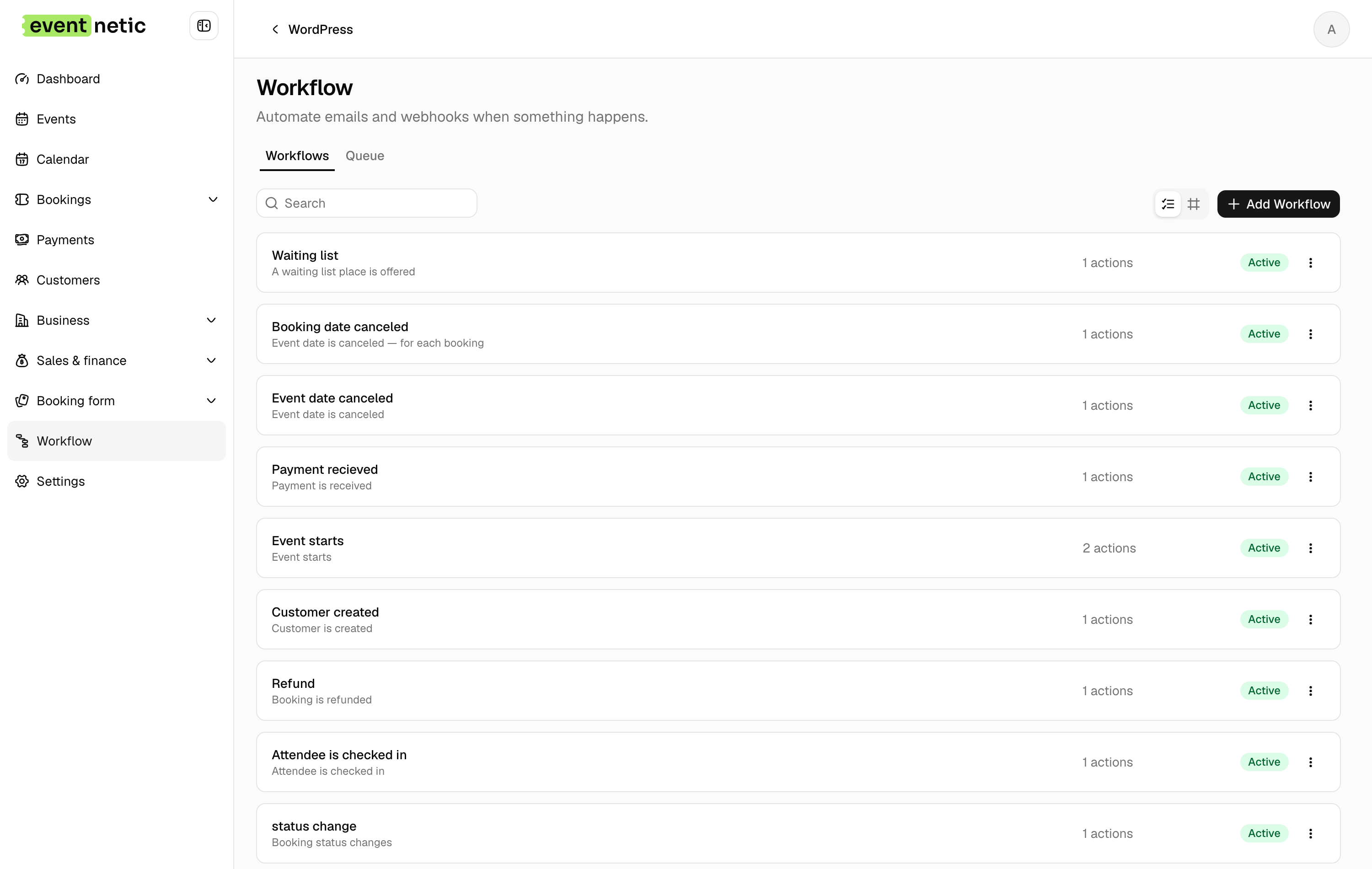
What you get on install
Three are made for you, and most sites never need more than a few beyond them:
- Booking confirmation — a booking is created, the customer is emailed
- Payment received — money arrives, the customer is emailed
- Booking canceled — a booking is called off, the customer is told
Making one
Add Workflow asks three things: a Workflow name, When this happens (the trigger), and Do this (the first action). That is enough to save it.
The editor
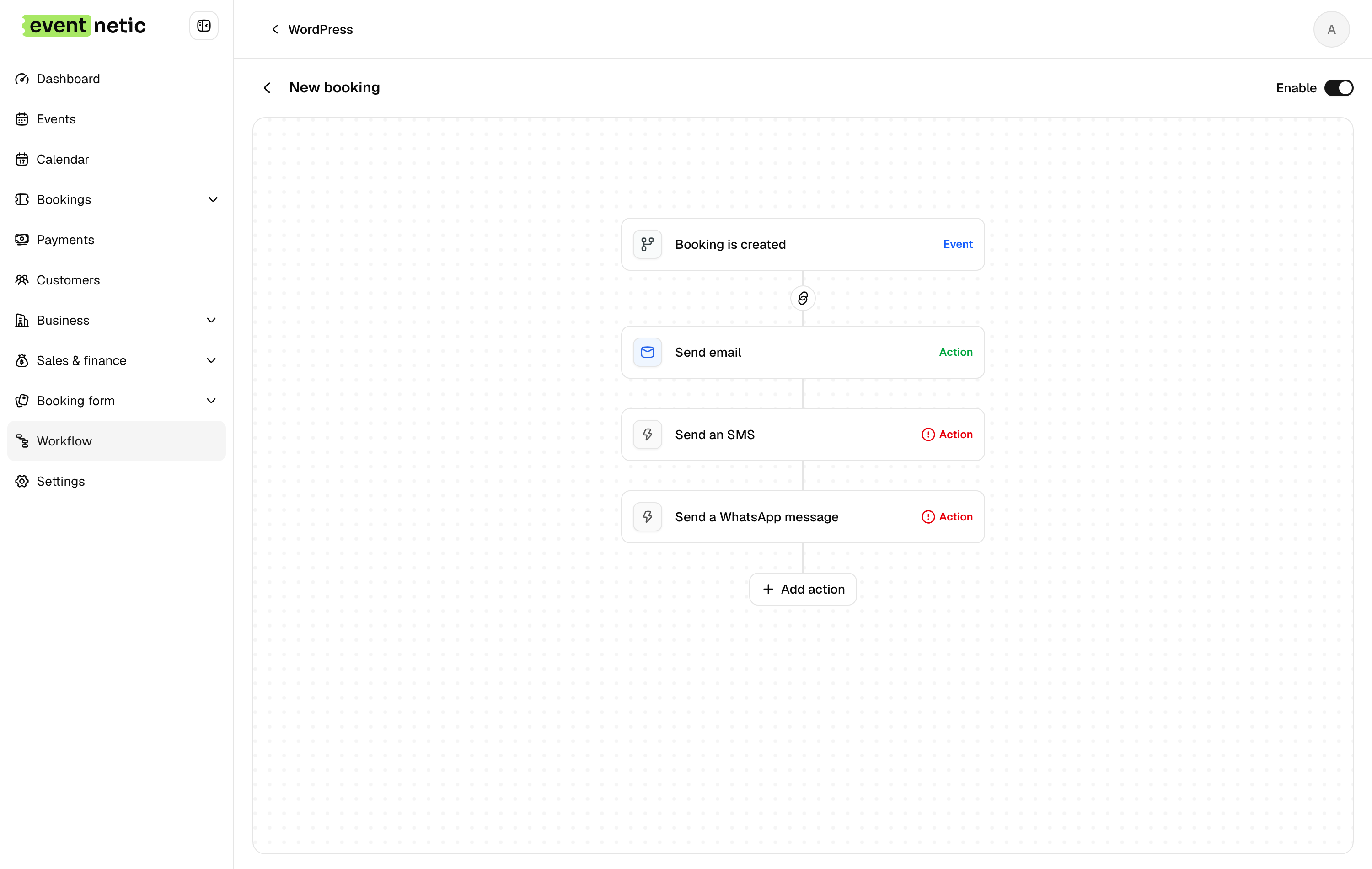
The workflow is drawn as a column: an Event node at the top — the thing that happened — and Action nodes under it, in order. Add action puts another one on the end.
An action that still needs its fields filled in says so, in red:
This action needs to be configured.
That is not a warning you can ignore: an unconfigured action does nothing when the workflow runs.
The Enable switch at the top right is what makes the whole thing live.
Timing
A workflow does not have to run the instant its trigger fires. In the trigger panel, When to run takes a number of minutes, hours or days, before or after, counted from:
- the trigger fires
- the event starts
- the event ends
"Two days before the event starts" is a reminder. "Three hours after the event ends" is a thank-you with a link to the next one. Anything in the future goes into the queue and waits.