Documentation /Bookings
Checking people in
Press Check in on the Bookings screen or on the door list, and a small dialog opens. It is designed to be used at a door, with one hand.
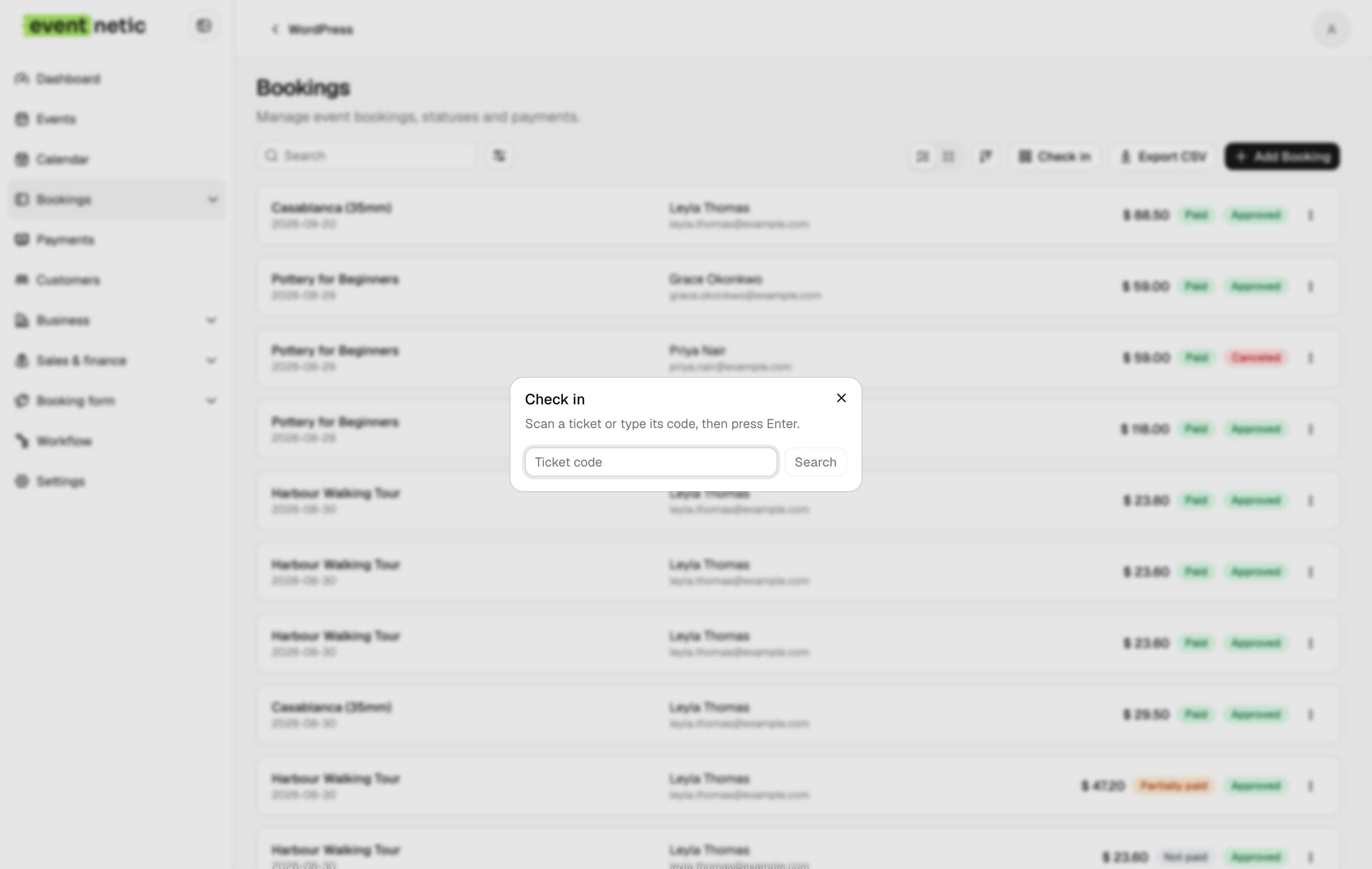
Scan a ticket or type its code, then press Enter.
Scanning
Any barcode scanner that types works: it enters the code and presses Enter for you. The field is ready for the next code as soon as the dialog opens and after every ticket, so there is no reaching for the mouse between scans. A phone camera app that copies the code works too. There is nothing to install.
Look first, then admit
A scan does not let anybody in by itself. It looks the ticket up and shows who the ticket belongs to, which event and date, and how many of the party are already in (Admitted: 1 / 3). Then one of:
- Ready to admit: press Check in to let them in
- Admitted, with Checked in at {time}: this ticket has already been used for this date
A code typed one character wrong shows somebody else's name before anything happens, instead of quietly using up their ticket. A link takes you to the full Booking details if something needs sorting out.
Courses and passes
A booking that covers several dates is let in once on each of them. When the scan cannot tell which date the person is arriving for, it asks: Which date are you admitting them to? Most tickets cover one date and answer for themselves, so the question only appears when it is needed.
Arriving on the third evening of a course marks the third evening, and the others are left as they were.
By name
If the queue is faster than the camera, use the door list instead: open Bookings → Attendees, search the name, and press Check in on the row. You are asked to confirm, and it leaves exactly the same mark. See The door list.
Codes admit one seat
Each attendee has a code of their own, so a booking for four does not go in as one lump. Two people can arrive at eight and the other two at nine, and the count on the event knows the difference.
What it triggers
Checking somebody in fires the Attendee is checked in workflow, which knows who they are: enough to send a "welcome, your table is by the window" message if you want one. Untick Run the workflows in the dialog, or in the question the door list asks, to mark somebody as arrived without sending it: the guest you are recording after the fact.