Documentation /Booking form
Custom forms
A paid feature.
Some events need more than a name and an email. A workshop needs to know about allergies; a conference needs a badge name; a tour needs a passport number. Booking form → Custom forms is where those questions live.
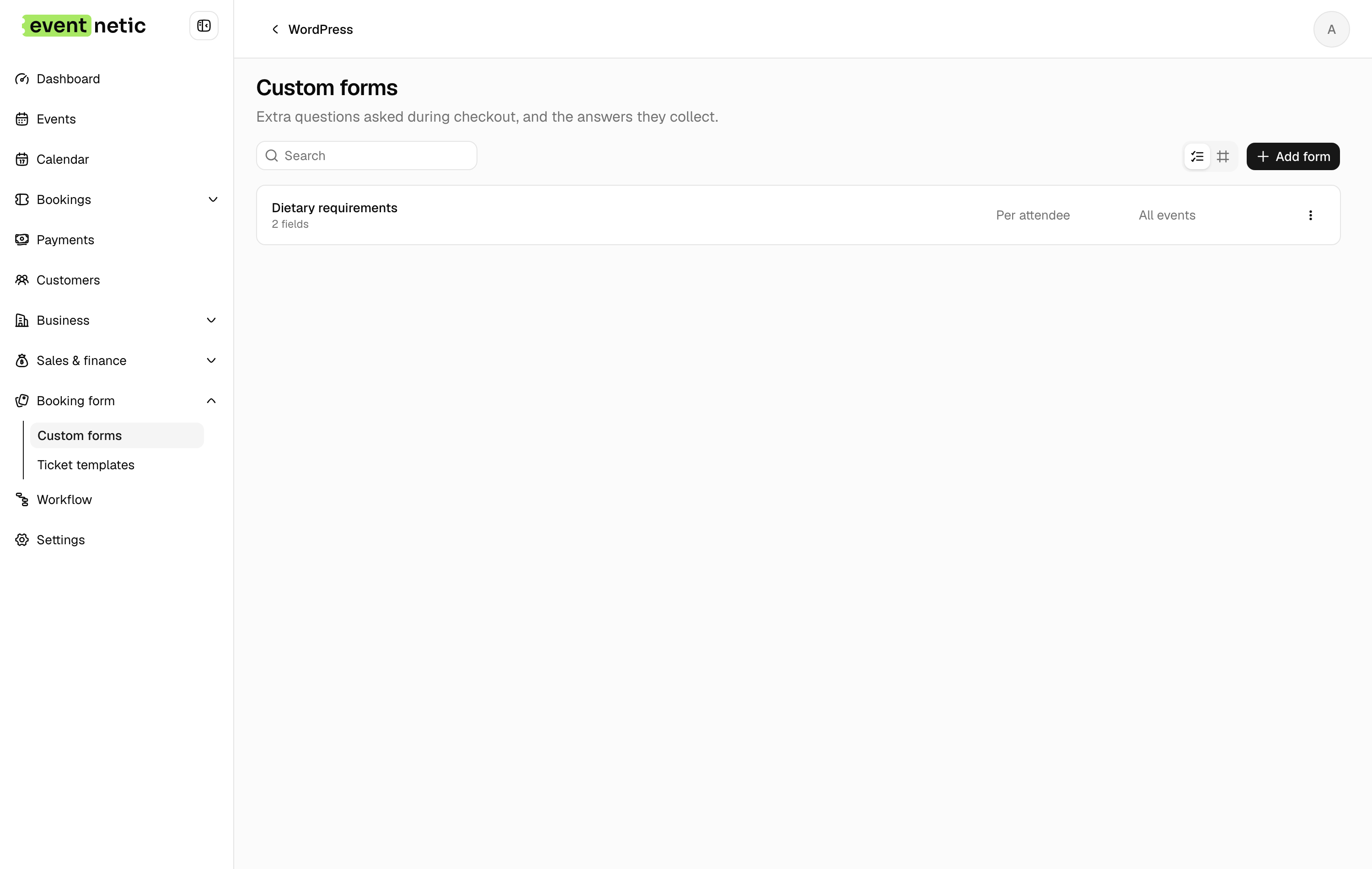
The list
Name, Applies to, Asked (Per booking or Per attendee), Fields, and a Disabled badge where a form is switched off.
The builder
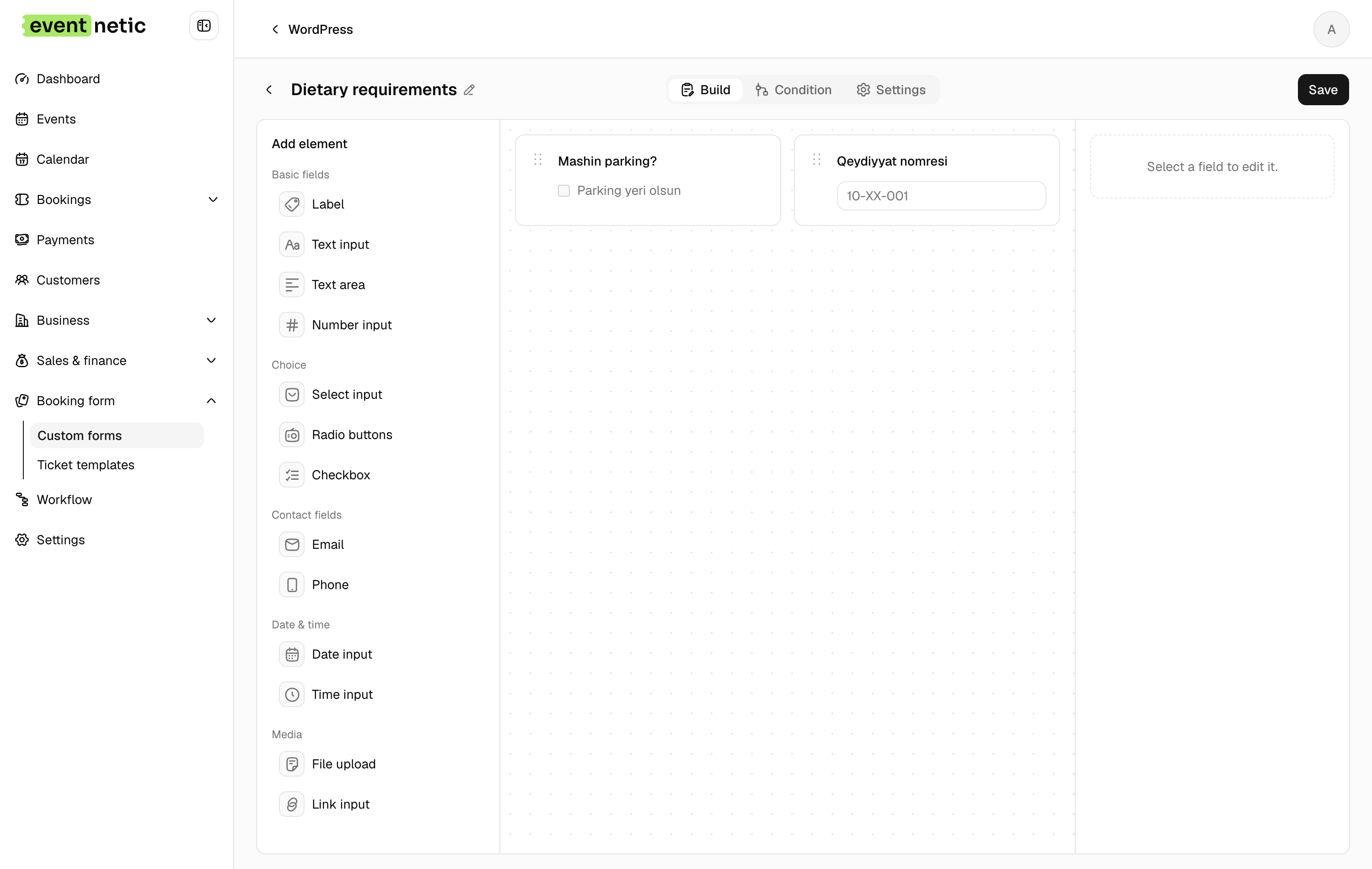
Three tabs.
Build : Drag fields from the palette onto the canvas.
Basic fields: Text input, Text area, Number input, Select input, Radio buttons, Checkbox, Date input, Time input, Link input, File upload, Label.
Contact fields: Email, Phone.
Selecting a field opens the inspector on the right: Label, Placeholder, Help text, Required, Options for the ones that have them, Min length, Max length, Starts as, Field width, and layout and visibility.
Condition : Rules. Show a field only when another has a particular answer — "If Any dietary requirements? is Yes, show Please tell us more". Asking everything at once is the fastest way to lose a booking half-finished.
Settings : Enable form, Ask these questions (Once per booking or Once per attendee), and Show this form on — particular events, particular categories, or all of them.
Then Publish.
Per booking or per attendee
The difference is worth pausing on:
- Once per booking — one answer for the whole order. "How did you hear about us?"
- Once per attendee — one answer per seat, asked on the Attendees step. "Shirt size", "Dietary requirements".
Where the answers turn up
- On the booking's Custom answers tab
- As a Custom answers column on the door list
- As placeholders in workflows — every field gets one, so an answer can be emailed straight to whoever needs it
File uploads get a second placeholder holding a link to the file.